Introduction
Screen recording software is a type of application that allows users to capture their computer screen activity in real time. This includes everything from video tutorials, online meetings, gaming sessions, software demonstrations, webinars, and presentations. These tools often combine video capture with audio recording, webcam overlay, annotations, and editing capabilities, making them essential for professional and educational content creation.
The importance of screen recording software lies in its ability to create high-quality instructional and demonstration content efficiently. It enables remote teams, educators, marketers, and content creators to visually communicate complex ideas, demonstrate software functionality, or record live events for later review. Key features like annotation tools, high-resolution recording, frame rate adjustment, and editing capabilities are crucial for producing polished, professional videos.
When selecting screen recording software, users should consider recording quality, frame rate, audio integration, webcam overlay support, editing features, export options, ease of use, and integration with other tools or platforms. Performance under high-resolution recording, system resource usage, and cloud storage or sharing options are also important evaluation criteria.
Best for: Educators, corporate trainers, content creators, marketers, software developers, and gamers who need to record, edit, and distribute screen-based content.
Not ideal for: Casual users who only require simple screen capture for screenshots or short video clips without editing or advanced features.
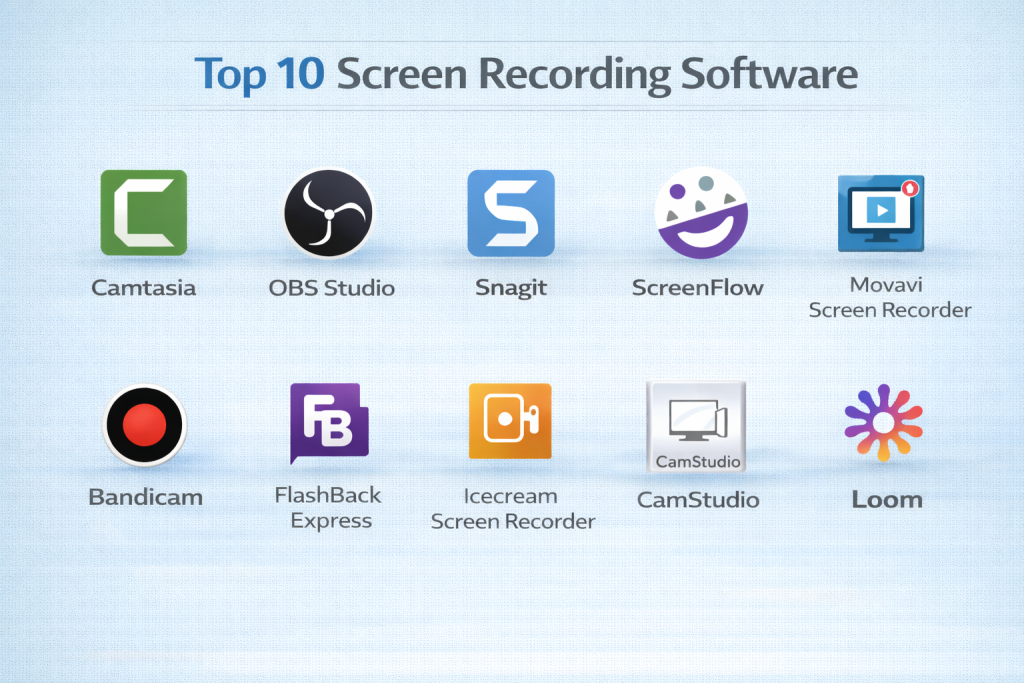
Top 10 Screen Recording Software Tools
1 — Camtasia
Short description: Camtasia is a professional-grade screen recording and video editing software designed for educators, marketers, and content creators.
Key features:
- Multi-track video editing
- High-definition screen recording
- Webcam and audio overlay
- Annotations, callouts, and cursor effects
- Templates for tutorials and presentations
- Export to multiple formats
- Integration with PowerPoint
Pros:
- Powerful editing tools
- User-friendly interface for beginners and professionals
- Comprehensive export options
Cons:
- Expensive compared to alternatives
- Resource-intensive on older systems
Security & compliance: Varies
Support & community: Tutorials, forums, customer support
2 — OBS Studio
Short description: OBS Studio is a free, open-source software for screen recording and live streaming, popular among gamers and streamers.
Key features:
- High-performance screen capture
- Real-time video and audio mixing
- Multi-source support (screen, webcam, game capture)
- Customizable overlays and scenes
- Stream to multiple platforms
- Cross-platform compatibility
- Plugin support for extended functionality
Pros:
- Free and highly customizable
- Reliable for both recording and live streaming
- Strong community support
Cons:
- Steep learning curve for beginners
- Limited built-in editing tools
Security & compliance: N/A
Support & community: Tutorials, forums, active community
3 — Snagit
Short description: Snagit is a simple screen capture and recording tool designed for quick tutorials, presentations, and documentation.
Key features:
- Screen capture and video recording
- Built-in editing tools
- Annotation and callout features
- GIF creation from recordings
- Export to multiple formats
- Easy sharing to cloud or email
- Simplified interface for quick use
Pros:
- Quick and easy to use
- Lightweight and efficient
- Ideal for tutorials and documentation
Cons:
- Limited advanced editing
- Not suited for full-length professional videos
Security & compliance: N/A
Support & community: Tutorials, customer support
4 — ScreenFlow
Short description: ScreenFlow is a Mac-focused screen recording and video editing tool for professionals and educators.
Key features:
- High-definition screen capture
- Multi-track editing
- Webcam and audio overlay
- Annotations, callouts, and text effects
- Stock media library
- Export in multiple formats
- Integration with Zoom and PowerPoint
Pros:
- Professional-quality output
- Intuitive editing interface
- Optimized for macOS
Cons:
- Mac-only
- Paid license required
Security & compliance: N/A
Support & community: Tutorials, forums, customer support
5 — Movavi Screen Recorder
Short description: Movavi Screen Recorder is an easy-to-use tool for capturing video tutorials, webinars, and streaming sessions.
Key features:
- Screen and webcam recording
- Audio recording and voiceover support
- Scheduled recordings
- Built-in editing and trimming tools
- Export to multiple formats
- Capture from multiple monitors
- Lightweight and fast
Pros:
- Beginner-friendly interface
- Quick recording setup
- Affordable compared to professional alternatives
Cons:
- Limited advanced editing tools
- Some features require a paid plan
Security & compliance: N/A
Support & community: Tutorials, support center
6 — Bandicam
Short description: Bandicam is a screen recorder optimized for high-performance gaming, webinars, and tutorials.
Key features:
- Screen, game, and device recording
- 4K UHD video support
- Real-time drawing and mouse effects
- Scheduled recordings
- Hardware acceleration for smooth performance
- Export to multiple formats
Pros:
- High-quality recording with minimal lag
- Optimized for gaming and high-res content
- Lightweight
Cons:
- Limited editing tools
- Watermark on free version
Security & compliance: N/A
Support & community: Tutorials, forums, customer support
7 — FlashBack Express
Short description: FlashBack Express is a screen recording software for creating tutorials, presentations, and demos without time limits.
Key features:
- Screen and webcam recording
- Audio narration support
- Scheduled recording
- Export to multiple formats
- Simple annotation tools
- No recording time limits in free version
Pros:
- Free version available
- Simple interface for beginners
- Good for tutorials and demos
Cons:
- Limited editing in free version
- Windows-only
Security & compliance: N/A
Support & community: Tutorials, customer support
8 — Icecream Screen Recorder
Short description: Icecream Screen Recorder is a lightweight and user-friendly tool for recording screen activity and audio.
Key features:
- Screen and webcam recording
- Audio capture
- Annotations and drawing tools
- Scheduled recordings
- Export in multiple formats
- Capture selected areas or full screen
Pros:
- Easy to use for beginners
- Lightweight and fast
- Affordable
Cons:
- Limited advanced features
- Some features require pro version
Security & compliance: N/A
Support & community: Tutorials, support center
9 — CamStudio
Short description: CamStudio is a free and open-source screen recording software suitable for simple tutorials and demos.
Key features:
- Screen and audio recording
- AVI and SWF output
- Simple annotation tools
- Lightweight and minimal system impact
- Custom cursors and screen annotations
Pros:
- Free and open-source
- Simple and lightweight
- Minimal system requirements
Cons:
- Limited editing features
- Outdated interface and less frequent updates
Security & compliance: N/A
Support & community: Open-source forums, tutorials
10 — Loom
Short description: Loom is a cloud-based screen recording software designed for team collaboration, remote work, and instructional videos.
Key features:
- Screen, webcam, and audio recording
- Instant cloud upload and sharing
- Annotation tools
- Password-protected sharing
- Team collaboration and analytics
- Lightweight and browser-based
Pros:
- Cloud-based, easy sharing
- Perfect for remote teams
- Quick setup and recording
Cons:
- Limited editing tools
- Free plan has recording limits
Security & compliance: Varies
Support & community: Tutorials, support center, community forums
Comparison Table
| Tool Name | Best For | Platform(s) Supported | Standout Feature | Rating |
|---|---|---|---|---|
| Camtasia | Professional tutorials | Windows, Mac | Advanced editing & annotations | N/A |
| OBS Studio | Gamers & streamers | Windows, Mac, Linux | Free & customizable | N/A |
| Snagit | Quick tutorials & presentations | Windows, Mac | Easy annotations | N/A |
| ScreenFlow | Mac professionals | Mac | Multi-track editing | N/A |
| Movavi Screen Recorder | Beginners & marketers | Windows, Mac | Quick setup & lightweight | N/A |
| Bandicam | Gaming & high-res recording | Windows | High-performance capture | N/A |
| FlashBack Express | Tutorials & demos | Windows | No time limit recording | N/A |
| Icecream Screen Recorder | Beginner-friendly | Windows, Mac | Lightweight & easy | N/A |
| CamStudio | Simple tutorials | Windows | Free & minimal resource | N/A |
| Loom | Remote teams & collaboration | Windows, Mac, Web | Cloud-based sharing | N/A |
Evaluation & Scoring of Screen Recording Software
| Tool Name | Core Features (25%) | Ease of Use (15%) | Integrations & Ecosystem (15%) | Security & Compliance (10%) | Performance & Reliability (10%) | Support & Community (10%) | Price / Value (15%) | Total Score |
|---|---|---|---|---|---|---|---|---|
| Camtasia | 25 | 13 | 14 | 8 | 10 | 9 | 11 | 90 |
| OBS Studio | 24 | 12 | 14 | 8 | 10 | 9 | 15 | 92 |
| Snagit | 20 | 14 | 12 | 8 | 9 | 8 | 12 | 83 |
| ScreenFlow | 25 | 13 | 13 | 8 | 10 | 9 | 11 | 89 |
| Movavi | 22 | 14 | 12 | 8 | 9 | 8 | 12 | 85 |
| Bandicam | 23 | 13 | 13 | 8 | 10 | 8 | 11 | 86 |
| FlashBack Express | 20 | 14 | 12 | 8 | 9 | 8 | 12 | 83 |
| Icecream | 20 | 15 | 12 | 8 | 8 | 8 | 12 | 83 |
| CamStudio | 18 | 14 | 10 | 8 | 8 | 7 | 15 | 80 |
| Loom | 22 | 15 | 12 | 8 | 9 | 8 | 12 | 86 |
Which Screen Recording Software Tool Is Right for You?
Beginners and educators may prefer OBS Studio, Snagit, or Icecream Screen Recorder for their simplicity, affordability, and ease of use. Professional content creators, marketers, and instructors may leverage Camtasia, ScreenFlow, or Bandicam for high-quality output and advanced editing capabilities. Remote teams and businesses may benefit from Loom for its cloud-based sharing and collaborative features. Key factors include platform compatibility, recording quality, editing features, cloud integration, and budget.
Frequently Asked Questions (FAQs)
- What is screen recording software?
It is software that captures computer screen activity and audio, often with editing and annotation tools for professional content creation. - Do I need high-end hardware?
High-resolution and multi-source recording benefits from stronger hardware, but lightweight tools like Snagit or Icecream run on modest systems. - Which software is best for beginners?
OBS Studio, Snagit, and Icecream Screen Recorder are easy to use and require minimal setup. - Can I record webcam and audio simultaneously?
Most tools, including Camtasia, ScreenFlow, and Loom, support simultaneous screen, webcam, and audio capture. - Are there free options?
Yes, OBS Studio, CamStudio, and FlashBack Express provide free versions with essential features. - Do these platforms offer editing tools?
Professional tools like Camtasia and ScreenFlow provide full editing suites, while OBS and Loom have limited editing capabilities. - Can I record multiple monitors?
Yes, Bandicam, Camtasia, and OBS Studio support multi-monitor recording. - Is live streaming supported?
OBS Studio, Streamlabs, and Bandicam support live streaming to multiple platforms. - Which software is best for tutorials and demos?
Camtasia, Snagit, and FlashBack Express are ideal for creating instructional content. - What common mistakes should users avoid?
Recording without proper resolution settings, ignoring audio quality, failing to test before recording, and not saving backup copies are common errors.
Conclusion
Screen recording software is essential for creating professional-quality tutorials, presentations, webinars, and live content. The best software depends on your skill level, production needs, and budget. Beginners may prioritize simplicity and affordability, while professionals focus on high-quality capture, advanced editing, and multi-source recording. By evaluating features, performance, integrations, and cost, creators can choose the right tool to produce engaging, polished, and effective screen recordings.

- Top 10 Email Deliverability Tools: Features, Pros, Cons & Comparison - September 6, 2026
- Top 10 Pharmacovigilance Software: Features, Pros, Cons & Comparison - September 6, 2026
- Top 10 Manufacturing Execution Systems (MES) - July 30, 2026