
What is Active Directory?
Active Directory (AD) is a directory service developed by Microsoft that is used to manage and store information about resources on a network, such as users, computers, printers, and other network devices. Active Directory is a critical component of IT infrastructure in many organizations, particularly those using Windows Server systems.
Active Directory provides a centralized way to organize, manage, and secure resources across a network, making it easier for administrators to control access and policies for users and devices. It is based on the LDAP (Lightweight Directory Access Protocol) and allows for the hierarchical organization of data, facilitating better management of IT resources.
Key features of Active Directory include:
- Centralized Authentication: AD handles authentication and authorization of users and computers in a network.
- Directory Services: It stores and organizes data about users, devices, and other resources.
- Group Policy: It enables administrators to configure and manage user settings, policies, and permissions across the network.
- Access Control: It defines who can access what resources and at what level (read, write, modify).
Basic Structure of Active Directory:
- Domain: A collection of users, computers, and other resources that share the same AD database.
- Forest: A collection of one or more domains that share a common schema and configuration.
- Organizational Unit (OU): A container within a domain that can hold users, groups, computers, and other OUs.
- Domain Controller (DC): A server that holds a copy of the AD database and authenticates users and devices.
What Are the Major Use Cases of Active Directory?
Active Directory serves as the backbone of many IT environments, especially in large organizations with multiple users and resources. Below are some major use cases of Active Directory:
1. User and Group Management:
- Use Case: Active Directory allows for centralized management of users and groups in a network. It helps administrators easily add, modify, or remove users, and manage group memberships for access control.
- Example: An organization’s HR department may update employee details in Active Directory, including job titles, departments, and permissions.
- Why Active Directory? It simplifies user management across the network, enabling administrators to define roles and permissions for users and groups efficiently.
2. Centralized Authentication and Authorization:
- Use Case: AD provides a single sign-on system for users. Once a user is authenticated, they can access all resources they are authorized to use without needing to sign in repeatedly.
- Example: A user logs into their workstation, and based on their credentials, AD authenticates them and grants access to network drives, applications, and printers.
- Why Active Directory? It centralizes authentication and authorization, improving security and convenience for users across the network.
3. Policy Management with Group Policy:
- Use Case: Active Directory allows administrators to define and enforce Group Policies that control user and computer behavior across the network.
- Example: Administrators can use Group Policy to enforce password complexity rules, set up login scripts, or restrict access to certain applications.
- Why Active Directory? Group Policy in AD centralizes configuration management, allowing administrators to enforce consistent settings and security across all computers in the domain.
4. Security and Access Control:
- Use Case: AD is essential for managing access control to various network resources based on user roles, groups, and permissions.
- Example: An employee in the finance department may have access to financial applications, while someone in HR has access to employee records. AD assigns these roles and permissions.
- Why Active Directory? It provides fine-grained control over resource access, ensuring users only have the permissions they need to perform their job functions.
5. Device Management:
- Use Case: AD manages computer accounts and ensures that only authorized devices can join the domain and access network resources.
- Example: A company may use AD to track which devices (laptops, desktops, etc.) are part of the network and apply security policies to those devices.
- Why Active Directory? It simplifies the administration of devices and ensures that they comply with the organization’s security policies.
How Active Directory Works Along with Architecture?
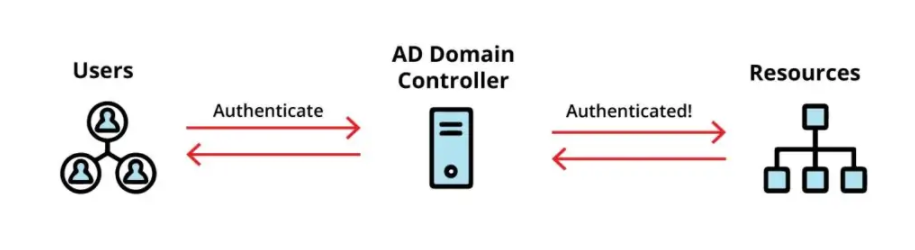
Active Directory is designed to work in a distributed network environment, using a hierarchical architecture for data storage and resource management. Below is an overview of how Active Directory works within the architecture:
1. Active Directory Domain Controllers:
- Domain Controllers (DCs) are the servers that store a copy of the AD database and perform authentication and authorization of users and devices. There can be multiple DCs within a domain for redundancy and load balancing.
- How It Works: When a user logs in or a device attempts to connect to the network, the request is sent to the domain controller, which checks the credentials and grants access based on the stored information in the AD database.
- Example: When a user tries to access a file server, the file server queries the DC to authenticate the user and check their permissions.
2. Active Directory Database:
- AD Database stores information about users, groups, policies, and other objects in the network. It is typically stored in a Lightweight Directory Access Protocol (LDAP)-based format and is accessible by all domain controllers in the domain.
- How It Works: Each DC has a copy of the AD database, and they use a replication process to ensure all changes are synchronized across all domain controllers in the domain.
- Example: If a user’s password is updated on one domain controller, the update is propagated to all other DCs to ensure consistency.
3. Replication Across Domain Controllers:
- How It Works: AD ensures consistency of the directory database across domain controllers through multi-master replication. This means that changes made on one domain controller are replicated to all others, ensuring data consistency across the network.
- Example: A new user is created on one DC, and that user’s information is replicated to all other domain controllers in the domain.
4. Active Directory Forests and Trusts:
- Forest: A forest is the top-level container in an AD environment, comprising one or more domains. Each forest shares a common schema and configuration, allowing for a unified identity management system.
- Trusts: Trust relationships allow users and devices in one domain to access resources in another domain, enabling cross-domain authentication and resource access.
- How It Works: Trusts are established between domains in different forests or within the same forest, enabling cross-domain authentication.
- Example: A user in Domain A might need to access resources in Domain B. A trust is established between these domains to allow the user to access resources in Domain B.
What Are the Basic Workflow of Active Directory?
The basic workflow of Active Directory typically involves several key stages, including user and resource management, authentication, and policy enforcement. Below is the general process:
1. Domain Setup and Configuration:
- Step 1: Set up an Active Directory domain by installing the Active Directory Domain Services (AD DS) role on a Windows Server.
- Step 2: Create and configure the initial domain controller to manage authentication and resource access.
- Step 3: Define the organizational structure of the domain (e.g., organizational units for departments, groups, and user roles).
2. User and Group Management:
- Step 1: Add new users and groups to the domain via the Active Directory Users and Computers console.
- Step 2: Assign users to appropriate groups based on their roles and permissions (e.g., Sales, HR).
- Step 3: Assign Group Policies to these groups to enforce security settings and access controls.
3. Authentication and Authorization:
- Step 1: Users log into the domain using their credentials (username and password).
- Step 2: The domain controller authenticates the credentials and grants access based on the user’s permissions and group memberships.
- Step 3: Access control lists (ACLs) are checked to determine what resources the user can access.
4. Policy Enforcement and Updates:
- Step 1: Admins define Group Policies that control security settings, desktop environments, and user permissions across the network.
- Step 2: Group Policy Objects (GPOs) are applied to users and computers based on their organizational units (OUs) or groups.
- Step 3: Policies are replicated to all domain controllers and are enforced across the network.
5. Resource Access and Management:
- Step 1: Users and devices access network resources such as files, printers, and applications based on the permissions assigned in Active Directory.
- Step 2: Access Control Lists (ACLs) are checked to determine if a user has the appropriate permissions to access a resource.
- Step 3: Administrators can modify or revoke access based on changes to group membership or permissions.
Step-by-Step Getting Started Guide for Active Directory
Follow these steps to get started with Active Directory:
Step 1: Install Active Directory Domain Services
- Install the Active Directory Domain Services (AD DS) role on a Windows Server instance.
- Run Server Manager, select Add roles and features, and choose Active Directory Domain Services.
Step 2: Set Up a Domain Controller
- After installation, promote the server to a domain controller by creating a new forest or joining an existing domain.
- Use PowerShell or the Active Directory Domain Services Configuration Wizard to configure the domain.
Step 3: Create Organizational Units (OUs)
- Organize your users, groups, and computers into organizational units based on departments, locations, or roles.
- Use the Active Directory Users and Computers tool to create and manage OUs.
Step 4: Add Users and Groups
- Create new users, assign them to appropriate groups, and define their permissions using Active Directory Users and Computers.
- Use Group Policies to define and enforce security settings across the domain.
Step 5: Configure Group Policies
- Define Group Policy Objects (GPOs) to apply security settings, desktop restrictions, and other configurations to users and devices.
- Use the Group Policy Management Console to create and manage GPOs.
Step 6: Monitor and Maintain Active Directory
- Regularly check the Active Directory health, replication status, and user activity using tools like Event Viewer and PowerShell scripts.
- Perform regular backups of your AD database and verify the health of domain controllers.
