Introduction
Mail merge tools are clever pieces of software that allow you to send personalized emails to many people at once. Instead of writing the same message fifty times or sending a generic “Dear Customer” email that people usually ignore, a mail merge tool takes a single template and automatically fills in specific details like names, company titles, or order numbers from a spreadsheet. This makes every recipient feel like you wrote the email just for them, which is the secret to getting more replies and building better professional relationships.
The importance of these tools lies in the balance between speed and quality. In the modern workplace, everyone is busy, but sending mass emails that look like spam is a quick way to get blocked. Mail merge tools bridge this gap by helping you stay efficient without losing the human touch. They are essential for anyone who needs to communicate with a group but wants to maintain a high level of professionalism.
Key real-world use cases:
- Sales Outreach: Sending tailored pitches to potential clients based on their specific industry or needs.
- Event Invitations: Managing guest lists for weddings, webinars, or conferences where each guest needs their own unique link or table number.
- Internal Communications: HR departments sending personalized benefit updates or payroll notifications to hundreds of employees.
- School and Non-Profit Updates: Teachers or community leaders sending progress reports or donation requests to parents and supporters.
When choosing a tool, you should look for how well it connects with your existing email provider (like Gmail or Outlook), how easy it is to set up your spreadsheet, and whether the tool helps your emails actually land in the inbox rather than the spam folder.
Best for: Small business owners, sales representatives, recruiters, and administrative professionals who need to send personalized messages to groups ranging from ten to a few thousand people. It is perfect for those who already use Google Sheets or Excel to manage their contacts.
Not ideal for: Large-scale marketing agencies sending millions of promotional newsletters a day. For that level of volume, dedicated email marketing platforms with complex design builders are a better fit than simple mail merge tools.
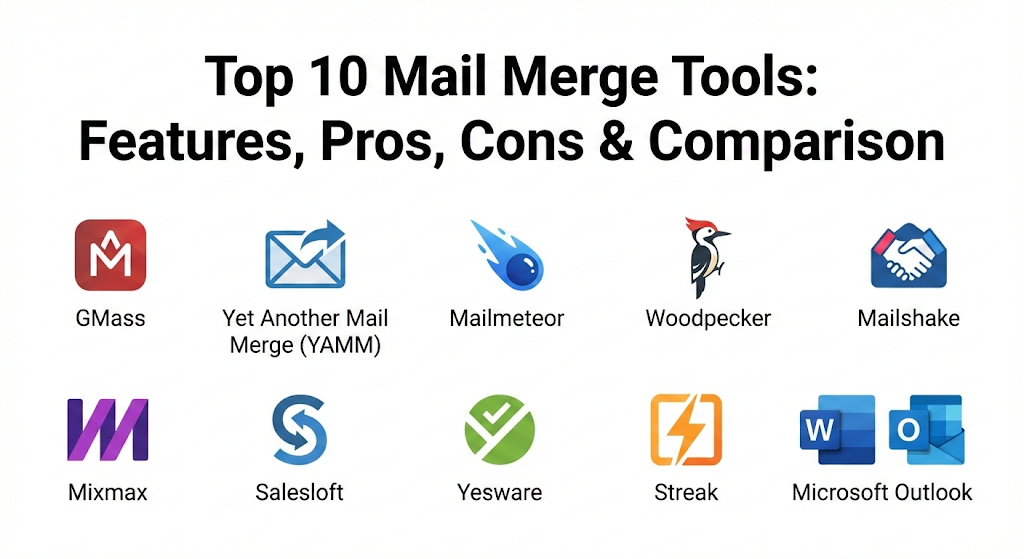
Top 10 Mail Merge Tools
1 — GMass
GMass is a powerful plugin that lives right inside your Gmail account. It is designed for people who want to turn their standard inbox into a high-powered mass-mailing machine without ever having to open a separate website or application.
Key features:
- Google Sheets Integration: Connects directly to your spreadsheets to pull in names and other data.
- Automatic Follow-ups: Sends a second or third email automatically if the person doesn’t reply to the first one.
- Email Tracking: Shows you exactly who opened your email and who clicked on the links you sent.
- Break Daily Limits: Uses special technology to help you send more emails than the standard daily Gmail cap.
- Scheduling: Set your emails to go out at a specific time in the future, like Monday morning at 8:00 AM.
- Personalized Images: Can even change images or attachments for each person on your list.
Pros:
- You don’t have to learn a new interface because it works inside the Gmail you already know.
- The automatic follow-up feature is a massive time-saver for sales and hiring.
- Very high delivery rates because the emails are sent through your actual account.
Cons:
- It only works for Gmail and Google Workspace users.
- The interface can sometimes feel a bit cluttered inside the compose window.
Security & compliance: Uses OAuth for secure login, GDPR compliant, and offers encryption for data.
Support & community: Extensive blog with “how-to” guides, a responsive email support team, and a large user base of marketers.
2 — Yet Another Mail Merge (YAMM)
YAMM is one of the most popular choices for people who live in Google Sheets. It is famous for its simplicity and the “tracked” results that appear right in your spreadsheet in real-time.
Key features:
- Spreadsheet-First Design: The entire process starts and ends within your Google Sheet.
- Real-Time Tracking: Watch your spreadsheet update as people open and click your emails.
- Draft-to-Template: Simply write your email in Gmail as a draft, and YAMM uses it as the template.
- Contact Filtering: Easily choose to send only to specific rows in your sheet.
- Polls and Surveys: Includes simple tools to gather feedback from your recipients.
- Attachment Support: Send different files to different people automatically.
Pros:
- Extremely easy for beginners; if you can use a spreadsheet, you can use YAMM.
- The free tier is generous for people who only need to send a few emails a day.
- Very lightweight and doesn’t slow down your computer or browser.
Cons:
- It lacks advanced features like multi-step automated sequences.
- The tracking can sometimes be blocked by certain corporate email filters.
Security & compliance: SOC 2 compliant, GDPR ready, and does not store the content of your emails on their servers.
Support & community: A very active help center with documentation in multiple languages and a large community of educators.
3 — Mailmeteor
Mailmeteor is a privacy-focused mail merge tool that is built to be fast and reliable. It is often praised for its clean design and the fact that it asks for fewer permissions than many of its competitors.
Key features:
- Privacy-First Approach: Does not read your personal email data, which is a big plus for sensitive work.
- Preview Mode: See exactly what each email will look like before you hit the send button.
- High Deliverability: Focuses on making sure your emails stay out of the “Promotions” tab.
- Collaboration: Share your mailing lists and templates with other people on your team.
- CSV Support: Not limited to just Google Sheets; you can upload your own lists too.
- Custom Delay: Adds a few seconds between each email so they don’t look like they were sent by a bot.
Pros:
- One of the fastest tools for sending out large batches of mail.
- The interface is very modern, clean, and easy to navigate.
- Excellent for users who are worried about giving software access to their private inbox.
Cons:
- Advanced features like follow-up sequences are only available in the paid versions.
- Does not have a built-in CRM or lead management system.
Security & compliance: GDPR compliant, ISO certified data centers, and uses limited scopes for Google permissions.
Support & community: Very fast email support and a library of video tutorials for new users.
4 — Woodpecker
Woodpecker is more than just a mail merge tool; it is a specialized platform for “cold” emailing. It is designed for sales teams who need to reach out to people they haven’t met yet and start a conversation.
Key features:
- Deliverability Protection: Monitors your account to make sure you aren’t sending too much too fast.
- If-Then Logic: Can send a different follow-up email based on whether the person clicked a link or not.
- Team Inbox: Shows all the replies your team receives in one central place.
- Health Check: Scans your email settings to ensure they are optimized for hitting the inbox.
- CRM Integration: Connects with tools like Salesforce or Hubspot automatically.
- Warm-up Tool: Helps new email accounts build a good reputation with providers.
Pros:
- The best choice for professional sales teams focused on B2B outreach.
- Excellent at making automated emails feel like personal, manual messages.
- Strong focus on technical deliverability (SPF, DKIM, DMARC).
Cons:
- Much more expensive than simple spreadsheet-based tools.
- Can be overkill for someone just wanting to send a one-time announcement.
Security & compliance: GDPR compliant, offers audit logs, and supports SSO (Single Sign-On).
Support & community: Offers dedicated account managers for larger teams and a wealth of sales strategy content.
5 — Mailshake
Mailshake is a favorite for marketers and founders. It combines mail merge capabilities with social media outreach, allowing you to connect with people on LinkedIn as well as via email.
Key features:
- Multi-Channel Sequences: Send an email, then a LinkedIn message, then another email automatically.
- Lead Catcher: A central place to manage everyone who has replied to your campaign.
- Phone Integration: Allows you to make calls directly from the platform as part of your outreach.
- AI Writing Assistant: Helps you write better subject lines and email body text.
- List Cleaning: Automatically removes invalid email addresses so your bounce rate stays low.
- Split Testing: Send two versions of an email to see which one gets more replies.
Pros:
- Great for people who want to combine email with other types of outreach.
- The user interface is very polished and professional.
- Includes a lot of free training and templates to help you succeed.
Cons:
- Requires a paid subscription; there is no permanent free version.
- Learning all the “multi-channel” features can take some time.
Security & compliance: SOC 2 Type II, GDPR compliant, and secure data handling practices.
Support & community: Incredible community of “Cold Email Pros” and live office hours for customers.
6 — Mixmax
Mixmax is a comprehensive productivity suite for Gmail. While it handles mail merge beautifully, it also adds features like calendar scheduling and polls directly into your email compose window.
Key features:
- One-Click Scheduling: Let recipients book a meeting with you without leaving the email.
- Sequence Rules: Move people to different lists automatically based on how they interact with your mail.
- Sidechat: Discuss an email thread with your team members privately before replying.
- Visual Enhancements: Add beautiful link previews and professional-looking buttons to your emails.
- Desktop App: Offers a dedicated app so you don’t always have to stay in your browser.
- Rules Engine: Automate repetitive tasks, like updating your CRM when someone clicks a link.
Pros:
- Makes your emails look much more modern and interactive than plain text.
- The calendar feature alone saves hours of “when are you free?” back-and-forth.
- Powerful enough for large sales teams but simple enough for individuals.
Cons:
- The full version can get quite expensive per user.
- The Chrome extension can sometimes conflict with other browser plugins.
Security & compliance: HIPAA compliant, SOC 2 Type II, and offers comprehensive audit logs.
Support & community: Priority support for enterprise users and a very helpful “Product University” online.
7 — Salesloft
Salesloft is an enterprise-level platform. It is designed for large companies with big sales departments that need to coordinate their efforts across hundreds of employees.
Key features:
- Cadence Management: A strict, step-by-step guide for sales reps to follow for every lead.
- Conversation Intelligence: Records and analyzes your sales calls to find out what is working.
- Deal Tracking: Shows you which emails are actually leading to closed sales and revenue.
- Enterprise Security: Built to handle the strict requirements of huge global corporations.
- Mobile App: Manage your mail merge and sales tasks from your phone while traveling.
- Deep CRM Sync: Bi-directional sync that ensures your CRM is always 100% accurate.
Pros:
- The “gold standard” for large-scale corporate sales environments.
- Incredible data and reporting that show the ROI of your email efforts.
- Very stable and reliable even when handling millions of data points.
Cons:
- Price is usually hidden and requires a sales call to get a quote.
- Far too complex for a solo entrepreneur or a very small team.
Security & compliance: ISO 27001, SOC 2, HIPAA, and GDPR compliant.
Support & community: High-touch enterprise support and a massive annual user conference.
8 — Yesware
Yesware is a “plug-and-play” tool for both Outlook and Gmail. It focuses on removing the guesswork from your emails by showing you exactly what happens after you hit send.
Key features:
- Multi-Platform Support: One of the few tools that works equally well for Outlook and Gmail users.
- Attachment Tracking: See if your recipient actually opened that PDF proposal you sent.
- Template Library: Save your best-performing emails and share them with your team.
- LinkedIn Integration: Pulls in LinkedIn profile data so you can personalize while you write.
- Campaign Manager: Set up multi-touch sequences that run in the background.
- Personal Reports: Gives you a “scorecard” showing your personal email performance.
Pros:
- Excellent for Outlook users who often feel left out by Google-centric tools.
- The interface is very non-intrusive and stays out of your way.
- Very reliable tracking technology that is hard for filters to block.
Cons:
- Some of the best features are locked behind the higher-priced tiers.
- The mobile experience is somewhat limited compared to the desktop version.
Security & compliance: SOC 2 Type II certified and works within the security layers of Microsoft and Google.
Support & community: Great technical support and a library of webinars on sales productivity.
9 — Streak
Streak is unique because it is a CRM (Customer Relationship Manager) that lives entirely inside Gmail. Its mail merge feature is built to help you move people through a “pipeline” from start to finish.
Key features:
- Pipeline Mail Merge: Send emails based on where a person is in your process (e.g., “Lead” vs “Negotiation”).
- Thread Splitting: Keep different conversations with the same person organized into different folders.
- Magic Columns: Automatically fills in data like “Last Contacted Date” in your spreadsheet.
- View Tracking: Get a notification on your phone the second someone opens your email.
- Shared Snippets: Quickly insert common phrases or paragraphs with a few keystrokes.
- Mobile CRM: Carry your entire mail merge list and history in your pocket.
Pros:
- The best choice for people who want to manage their whole business inside their inbox.
- The spreadsheet view inside Gmail is very intuitive and easy to use.
- Great free version for individuals just starting out.
Cons:
- Only works in the Google Chrome browser.
- If you have a massive amount of data, it can sometimes make Gmail feel a bit slow.
Security & compliance: GDPR compliant and uses standard Google-approved security protocols.
Support & community: Excellent documentation and a very helpful YouTube channel for tutorials.
10 — Microsoft Word & Outlook (Built-in)
For many, the original mail merge is still the best. Using the classic combination of Excel, Word, and Outlook allows you to send personalized emails without installing any third-party software at all.
Key features:
- Excel Power: Use all the complex formulas of Excel to prepare your data.
- Word Formatting: Use every design tool in Microsoft Word to create your email template.
- No Extra Cost: If you already have Microsoft Office, you already have this tool.
- Offline Capability: You can set up the entire merge while your computer is offline.
- Document Merge: Can also be used to create personalized letters, labels, and envelopes.
- Complete Control: You aren’t relying on a small startup; this is a core Microsoft feature.
Pros:
- No monthly subscriptions or extra fees.
- Works with your existing professional Outlook setup.
- Extremely powerful for creating complex, highly formatted documents.
Cons:
- Does not include modern features like open tracking or click tracking.
- The setup process is much more manual and “old school” than modern apps.
Security & compliance: Follows your company’s existing Microsoft 365 security and compliance settings.
Support & community: Decades of tutorials and guides available from Microsoft and third-party experts.
Comparison Table
| Tool Name | Best For | Platform(s) Supported | Standout Feature | Rating |
| GMass | Inside-Gmail power users | Gmail / Chrome | Automated follow-up sequences | 4.8 / 5 |
| YAMM | Spreadsheet beginners | Google Sheets / Gmail | Simple real-time sheet tracking | 4.6 / 5 |
| Mailmeteor | Privacy-conscious users | Google Sheets / Gmail | Limited data permissions | 4.7 / 5 |
| Woodpecker | B2B cold email sales | Web App / Any Inbox | Deliverability protection AI | 4.5 / 5 |
| Mailshake | Multi-channel outreach | Web App / Any Inbox | LinkedIn & Phone integration | 4.6 / 5 |
| Mixmax | Productivity & Meetings | Gmail / Chrome | In-email calendar booking | 4.6 / 5 |
| Salesloft | Enterprise sales teams | Cloud / CRM Link | Advanced revenue analytics | N/A |
| Yesware | Outlook & Sales teams | Outlook / Gmail | Attachment & link tracking | 4.4 / 5 |
| Streak | Management in Gmail | Gmail / Chrome | Full CRM inside the inbox | 4.5 / 5 |
| Microsoft Office | Free/Built-in users | Windows / Mac | Uses Excel + Word + Outlook | N/A |
Evaluation & Scoring of Mail Merge Tools
This table breaks down how these tools are measured against each other using a weighted scoring system. This helps you identify which tool fits your specific priorities.
| Evaluation Category | Weight | Top Performer | Why? |
| Core Features | 25% | Mailshake | Offers the most diverse range of outreach options beyond just email. |
| Ease of Use | 15% | YAMM | If you can use Google Sheets, you can send a merge in seconds. |
| Integrations | 15% | Salesloft | Connects deeply with almost every major enterprise CRM. |
| Security & Compliance | 10% | Mailmeteor | Minimal permissions and a focus on keeping data private. |
| Performance | 10% | Woodpecker | Specifically built to handle the technical side of inbox delivery. |
| Support & Community | 10% | GMass | Huge library of educational content and a very vocal fan base. |
| Price / Value | 15% | MS Office | Hard to beat “free” if you already own the software. |
Which Mail Merge Tool Is Right for You?
Selecting the right tool depends on your goals, your technical comfort level, and the software you already use every day.
Solo Users vs. Enterprises
If you are a solo user, you probably want something that is “set it and forget it.” YAMM or Mailmeteor are perfect because they don’t require a long setup process. If you are an SMB (Small to Medium Business), a tool like GMass or Streak is better because it allows you to grow your lists and track your success over time.
For Enterprises, the choice is usually about control and data. Salesloft or Mixmax provide the management features that let a boss see what their whole team is doing, ensuring that everyone is sending high-quality, professional messages.
Budget-Conscious vs. Premium
If you are on a tight budget, start with the built-in Microsoft Mail Merge or the free tiers of YAMM. They do the basic job perfectly well. If you are willing to pay for a premium solution, you are really paying for time-saving automation. Tools like Woodpecker or Mailshake are expensive, but they can pay for themselves if they help you close just one or two more sales deals each month.
Feature Depth vs. Simplicity
Do you want a simple hammer or a whole toolbox?
- Simple (Mailmeteor, YAMM): Great for sending a quick announcement or an invitation. They do one thing very well.
- Deep (Mixmax, Salesloft, Mailshake): These are for people whose entire job involves outreach. They include calendars, phone dialers, and complex automation.
Frequently Asked Questions (FAQs)
1. Is mail merge the same as BCC?
No, it is much better. When you use BCC, everyone gets the same generic email, and many spam filters will block it. With mail merge, each person receives their own individual email with their name in it, which looks much more professional and is less likely to be flagged as spam.
2. Will my emails go to the spam folder?
If you send too many emails too quickly, yes. Good mail merge tools help by “throttling” your sending, which means they send the emails one by one with a small delay in between to make them look like they were typed by a human.
3. Do I need to be good at coding to use these?
Not at all. Most modern tools use a simple “drag and drop” or “tag” system. For example, you just type {{First Name}} where you want the person’s name to appear, and the software handles the rest.
4. Can I see if people are reading my emails?
Yes, most of these tools (except the basic Microsoft Office version) include “Open Tracking.” This tells you exactly when someone opened your email and how many times they looked at it.
5. How many emails can I send per day?
This depends on your email provider. A standard free Gmail account usually allows around 500 emails a day, while a paid Google Workspace or Outlook account can allow up to 2,000. Some tools have their own limits based on the plan you pay for.
6. Can I send attachments with a mail merge?
Yes, many tools like YAMM and GMass allow you to send attachments. Some even let you send different attachments to different people (like sending a personalized invoice to each client).
7. Is my data safe with these companies?
Most reputable tools use secure connections and do not store your private email content. If you are in a sensitive industry like healthcare or law, look for tools that are “SOC 2” or “HIPAA” compliant.
8. Can I use mail merge for cold sales?
Yes, but you should use a specialized tool like Woodpecker or Mailshake. These tools are built to handle the specific technical challenges of reaching out to people who don’t know you yet.
9. What happens if someone replies?
The reply will go straight to your normal email inbox (Gmail or Outlook), just like a regular email. Some advanced tools will also show the reply inside their own dashboard so you can track the conversation.
10. Do I need a spreadsheet?
Yes, a spreadsheet (usually Google Sheets or Excel) is the “brain” of the mail merge. It holds the list of names, email addresses, and any other info you want to include in your message.
Conclusion
Mail merge tools have transformed from a complex technical task into something anyone can do in minutes. By using these tools, you can reclaim hours of your time every week while actually improving the quality of your communication. Instead of being the person who sends annoying mass emails, you become the professional who sends thoughtful, personalized messages to everyone in your network.
When picking your tool, remember that there is no single “winner” for everyone. The right choice depends on whether you prefer the simplicity of a spreadsheet, the power of a full sales platform, or the familiarity of your existing Microsoft Office setup. Start with a simple goal—like sending personalized invitations or a team update—and see how much of a difference it makes. As your needs grow, you can always move to a more advanced tool to help you reach even more people.

- Top 10 Email Deliverability Tools: Features, Pros, Cons & Comparison - September 6, 2026
- Top 10 Pharmacovigilance Software: Features, Pros, Cons & Comparison - September 6, 2026
- Top 10 Manufacturing Execution Systems (MES) - July 30, 2026