Introduction
In the modern digital landscape of 2026, the phrase “never share your password” has become a technical impossibility for businesses and families alike. Whether it is a marketing team accessing a shared social media account, a developer handoff, or a household managing streaming services, the need to distribute credentials is ubiquitous. Password Sharing Tools—often integrated into broader password management suites—are secure, encrypted platforms designed to facilitate the controlled distribution of login credentials, API keys, and sensitive notes without exposing them to the vulnerabilities of plain-text communication.
The importance of these tools cannot be overstated. Sending a password via Slack, email, or text message leaves a digital trail that hackers can easily exploit. Secure sharing tools use “Zero-Knowledge” architecture, meaning the service provider never sees the actual data; only the authorized sender and receiver hold the keys to decrypt the information. Key real-world use cases include onboarding new employees, managing client account access in agencies, and providing emergency access to digital legacies for family members. When evaluating these tools, users should look for end-to-end encryption, granular permission levels (view only vs. edit), audit logs to see who accessed what and when, and ease of revocation.
Best for:
These tools are essential for IT departments, Managed Service Providers (MSPs), marketing agencies, and remote-first companies of all sizes. They benefit anyone who needs to maintain high-security standards while collaborating.
Not ideal for:
Individuals who only use a handful of personal accounts and never need to share access may find a simple browser-based manager sufficient. Additionally, highly air-gapped government environments may require specialized hardware security modules rather than cloud-based sharing software.
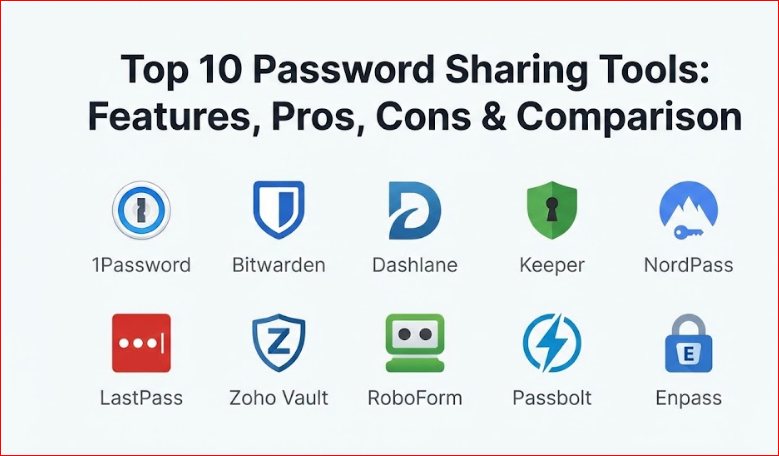
Top 10 Password Sharing Tools
1 — 1Password
1Password is a market leader known for its polished user interface and “Secret Key” security model. It is designed for both families and high-growth enterprises that require a balance between strict security and a friction-less user experience.
- Key Features:
- Shared Vaults: Create specific containers for teams to access shared credentials.
- Psst! (Password Secure Sharing Tool): Generate secure, expiring links to share passwords with anyone, even non-users.
- Watchtower: Alerts users to weak passwords, reused credentials, and compromised sites.
- Travel Mode: Temporarily removes sensitive vaults from devices when crossing borders.
- Granular Permissions: Assign “View,” “Edit,” or “Manage” rights to individual team members.
- Custom Security Policies: Force MFA or restrict access based on IP address.
- Slack Integration: Directly share secrets within protected Slack channels.
- Pros:
- The most intuitive interface in the industry, leading to high employee adoption rates.
- The additional “Secret Key” adds a layer of protection that traditional master passwords lack.
- Cons:
- No free version (only a free trial); it is a premium-only service.
- Some advanced administrative features can be overwhelming for very small teams.
- Security & compliance: SOC 2 Type 2, GDPR, HIPAA, AES-256 encryption, PBKDF2 key derivation.
- Support & community: 24/7 email support, extensive documentation, active community forum, and dedicated enterprise account managers.
2 — Bitwarden
Bitwarden is the premier open-source password management solution. It appeals to privacy purists and IT professionals who value transparency and the ability to self-host their password infrastructure.
- Key Features:
- Bitwarden Send: A dedicated tool for sharing encrypted text or files via a secure link.
- Organization Vaults: Shared collections for business and family units.
- Open Source Codebase: Publicly auditable code ensures no hidden backdoors.
- Directory Connector: Syncs with AD, Azure, and Okta for automated user provisioning.
- Command Line Interface (CLI): Perfect for developers to integrate secrets into workflows.
- Self-Hosting: Option to host the entire database on a private server.
- Event Logs: Detailed history of all sharing and access activities.
- Pros:
- Offers the most robust “Free Forever” plan in the category.
- High level of trust due to its open-source nature and regular third-party audits.
- Cons:
- The user interface is functional but lacks the “visual polish” of competitors like Dashlane.
- Setting up self-hosting requires significant technical expertise.
- Security & compliance: SOC 2, HIPAA, GDPR, ISO 27001, E2EE.
- Support & community: Massive Reddit community, GitHub support, comprehensive help center, and priority support for paid users.
3 — Dashlane
Dashlane focuses on simplicity and “set-and-forget” security. It is particularly popular among small-to-medium businesses (SMBs) that want a powerful sharing tool that requires zero training for non-technical staff.
- Key Features:
- Zero-Knowledge Architecture: Ensures Dashlane employees never have access to shared data.
- One-Click Sharing: Instantly share one or multiple credentials with individuals or groups.
- Smart Space Management: Keeps personal and work passwords separate within the same app.
- Dark Web Monitoring: Scans the web for leaked company credentials.
- Integrated VPN: Provides additional security for remote workers on public Wi-Fi.
- Admin Console: Centralized dashboard to monitor team security scores.
- Bulk Sharing: Capability to move entire categories of passwords to new team members.
- Pros:
- Excellent mobile app experience with seamless biometric integration.
- The “Personal vs. Business” separation is handled better than almost any other tool.
- Cons:
- Generally more expensive than Bitwarden or Zoho Vault.
- The desktop app was discontinued in favor of a web extension, which some users dislike.
- Security & compliance: SOC 2, GDPR, Patented US security architecture.
- Support & community: Live chat support (rare in this industry), email support, and a robust FAQ database.
4 — Keeper
Keeper is a security-first platform that caters to enterprise-level organizations and regulated industries. It provides the most granular control over administrative permissions and audit trails.
- Key Features:
- Keeper Share: Secure vault-to-vault sharing with time-limited access.
- One-Time Share: Send a secret to a contractor for a limited duration.
- Advanced Reporting: High-fidelity audit logs for compliance requirements.
- Secrets Manager: Protects API keys and certificates for DevOps teams.
- Role-Based Access Control (RBAC): Define precisely what each job role can see.
- Active Directory Integration: Automated onboarding and offboarding.
- Emergency Access: “Digital Heir” feature for critical account recovery.
- Pros:
- Widely considered the most secure tool for government and highly regulated sectors.
- The Secrets Manager is a top-tier feature for technical organizations.
- Cons:
- The interface can feel “clunky” and corporate compared to 1Password.
- Many essential features are locked behind higher-priced “add-on” modules.
- Security & compliance: SOC 2, ISO 27001, HIPAA, FedRAMP Authorized, GDPR.
- Support & community: 24/7 phone and chat support for enterprise, global training webinars.
5 — NordPass
Developed by the security team behind NordVPN, NordPass uses the modern XChaCha20 encryption algorithm. It is designed for modern users who want speed and a contemporary design.
- Key Features:
- XChaCha20 Encryption: Often considered faster and more future-proof than AES-256.
- Trusted Contacts: Allows for easy, direct sharing between verified NordPass users.
- Shared Folders: Organize and distribute passwords by project or department.
- Data Breach Scanner: Real-time alerts for business emails.
- Password Health: Scores the strength of your shared and personal passwords.
- OCR Scanner: Scan printed passwords directly into the vault.
- MFA Support: Compatible with security keys like YubiKey.
- Pros:
- Extremely fast performance and a very “light” feel on desktop and mobile.
- Competitive pricing for small teams and families.
- Cons:
- Lacks the deep enterprise-grade audit features found in Keeper.
- Browser extension can occasionally be inconsistent on niche browsers.
- Security & compliance: GDPR, ISO 27001, Independent security audits by Cure53.
- Support & community: 24/7 email and live chat support, informative security blog.
6 — LastPass
Despite historical security challenges, LastPass remains a giant in the industry due to its feature density and wide range of integrations. It has recently overhauled its architecture to regain user trust.
- Key Features:
- Sharing Center: A dedicated dashboard to manage all shared items in one place.
- Family Accounts: Includes up to 6 unique users with easy “one-click” sharing.
- Emergency Access: Grant access to a trusted contact after a specific wait period.
- Federated Login: Allows users to log in with their existing corporate credentials.
- Security Challenge: Benchmarks your security against industry standards.
- Customizable Admin Policies: Over 100 policies to control user behavior.
- Pros:
- One of the most mature sharing dashboards in the business.
- Integration with a vast array of third-party business apps.
- Cons:
- Past security breaches have caused significant reputation damage.
- Free version is now very limited (restricted to only one device type).
- Security & compliance: SOC 2 Type 2, SOC 3, BSI C5, GDPR.
- Support & community: Knowledge base, community forums, and ticket-based support.
7 — Zoho Vault
Zoho Vault is the best choice for companies already within the Zoho ecosystem. It provides a highly affordable, business-focused password manager with excellent integration capabilities.
- Key Features:
- User Groups: Organize sharing by department (HR, Marketing, IT).
- Direct Login: Launch websites directly from the vault without revealing the password to the user.
- Password Assessment: Identifies weak or old shared credentials.
- Third-Party Integration: Seamlessly connects with Gmail, Microsoft 365, and Slack.
- Offline Access: Encrypted local copy for when internet access is unavailable.
- Password Requests: Employees can request access to specific vaults.
- Pros:
- One of the most affordable paid plans for businesses.
- “Password masking” allows users to use a password without actually seeing it.
- Cons:
- The interface feels a bit dated and “industrial.”
- Not as well-suited for personal/family use compared to Dashlane.
- Security & compliance: SOC 2, GDPR, HIPAA, ISO 27001.
- Support & community: 24/5 phone support, email support, and extensive webinar library.
8 — RoboForm
RoboForm started as a form-filler decades ago and has evolved into a robust password manager. It is best for users who deal with complex web forms and legacy software.
- Key Features:
- Safe Sharing: Share folders or individual items with verified users.
- Centralized Management: Admins can grant or revoke access instantly.
- Superior Form Filling: Handles complex multi-page forms better than most.
- Security Auditing: Reports on shared password strength across the team.
- Cloud Sync: Keeps shared vaults updated across all devices instantly.
- Emergency Access: Built-in recovery protocols for shared accounts.
- Pros:
- Excellent value for the price; often the cheapest premium option.
- Strongest “legacy” support for older Windows applications.
- Cons:
- The mobile app is not as modern or feature-rich as 1Password.
- Sharing features are less granular than “Enterprise” focused tools.
- Security & compliance: AES-256, PBKDF2, GDPR.
- Support & community: Phone, chat, and email support; massive documentation library.
9 — Passbolt
Passbolt is a unique tool specifically designed for developers and DevOps teams. It is built to handle the complexities of sharing secrets within a technical environment.
- Key Features:
- Open Source: Entirely transparent codebase for maximum trust.
- Gpg-Based Security: Uses the OpenPGP standard for encryption.
- Collaboration First: Designed from the ground up for team sharing, not as a personal tool.
- Self-Host or Cloud: Choose between total control or ease of use.
- Developer API: Build custom integrations for your CI/CD pipeline.
- User-Friendly Web Extension: High security without a cumbersome UI.
- Pros:
- The absolute best tool for developers who use GPG keys.
- Extremely focused on the “sharing” aspect rather than individual storage.
- Cons:
- Not suitable for non-technical users or general family use.
- No native mobile apps (primary focus is on the web/desktop extension).
- Security & compliance: SOC 2, OpenPGP, GDPR, European-based security standards.
- Support & community: Active community forum, direct developer support on paid plans.
10 — Enpass
Enpass is distinct because it is an “offline-first” manager. Instead of storing your shared passwords on their servers, you choose your own cloud (Dropbox, Google Drive, iCloud) to host the encrypted file.
- Key Features:
- Shared Vaults via Personal Cloud: Sync shared folders via your own storage provider.
- Local Storage: Your data never touches Enpass servers.
- No Subscription Option: Offers a “One-Time Purchase” for many platforms.
- Multiple Vaults: Keep family and work secrets entirely separate.
- Breach Monitoring: Checks for leaks without uploading your data.
- Custom Templates: Create specific entries for Wi-Fi, credit cards, and licenses.
- Pros:
- Ideal for those who do not trust third-party password servers.
- Highly cost-effective over long periods due to the one-time purchase option.
- Cons:
- Sharing is more difficult to set up because you must manage the cloud permissions yourself.
- Lacks “Admin Console” features for large corporate teams.
- Security & compliance: SQLCipher, AES-256, GDPR.
- Support & community: Active user forums and email-based support.
Comparison Table
| Tool Name | Best For | Platform(s) Supported | Standout Feature | Rating |
| 1Password | Design-Conscious Teams | Windows, Mac, iOS, Android, Linux | Secret Key Security | 4.7 / 5 |
| Bitwarden | Open-Source Enthusiasts | All Platforms + Self-Host | Open Source Transparency | 4.8 / 5 |
| Dashlane | SMBs / User Ease | Web, iOS, Android | Built-in VPN + UI | 4.5 / 5 |
| Keeper | Enterprise / Regulated | All Platforms | FedRAMP / RBAC | 4.8 / 5 |
| NordPass | Speed & Simplicity | Windows, Mac, iOS, Android | XChaCha20 Encryption | 4.4 / 5 |
| LastPass | Feature-Heavy Users | All Platforms | Unified Sharing Center | 4.1 / 5 |
| Zoho Vault | Zoho Users / Low Budget | Web, iOS, Android | Password Masking | 4.3 / 5 |
| RoboForm | Form Filling / Legacy | All Platforms | Advanced Form Filler | 4.2 / 5 |
| Passbolt | Developers / DevOps | Web, Linux | OpenPGP Standard | 4.6 / 5 |
| Enpass | Offline / Privacy Fans | All Platforms | Choose Your Own Cloud | 4.4 / 5 |
Evaluation & Scoring of Password Sharing Tools
To provide an objective comparison, we have evaluated these tools across seven critical dimensions.
| Category | Weight | Key Evaluation Points |
| Core Features | 25% | Sharing granularity, vault organization, and recovery options. |
| Ease of Use | 15% | Onboarding speed, UI intuition, and mobile app quality. |
| Integrations | 15% | SSO, Active Directory, and browser extension reliability. |
| Security & Compliance | 10% | Encryption standards (AES vs XChaCha), audits, and certifications. |
| Performance | 10% | Sync speed across devices and extension responsiveness. |
| Support | 10% | Availability of 24/7 help, documentation, and community resources. |
| Price / Value | 15% | Cost per user, free tier availability, and one-time fee options. |
Which Password Sharing Tool Is Right for You?
The “perfect” tool depends entirely on your organizational structure and technical comfort level.
Solo Users vs. SMB vs. Enterprise
- Solo Users/Families: Look at 1Password or Bitwarden. They offer the best balance of personal use and easy “shared vaults” for households.
- SMBs (10-100 employees): Dashlane or NordPass are excellent because they require very little IT overhead to manage.
- Mid-Market to Enterprise: Keeper is the undisputed king here due to its compliance certifications and deep administrative controls.
Budget-Conscious vs. Premium Solutions
If budget is the primary driver, Bitwarden (Free/Low cost) and Zoho Vault provide the most power per dollar. If you are willing to pay for a “premium” experience to ensure your employees actually use the tool, 1Password is the gold standard.
Feature Depth vs. Ease of Use
Developers will gravitate toward Passbolt for its API and GPG integration. However, if your team consists of non-technical staff (sales, HR, marketing), Dashlane’s simple “share” button is much more effective at preventing security workarounds like sticky notes.
Security and Compliance Requirements
If you work in a government-adjacent field or healthcare, Keeper and 1Password offer the best compliance packages (SOC 2, HIPAA, etc.). If you want absolute control over your data residency, Enpass or self-hosted Bitwarden are the only ways to ensure your data stays off vendor servers.
Frequently Asked Questions (FAQs)
1. Is it safe to share passwords through these tools?
Yes, because they use Zero-Knowledge encryption. The actual password is encrypted on your device before it is sent. Only the intended recipient has the digital key required to decrypt and view it.
2. What happens if I revoke a shared password?
When you revoke access in a tool like 1Password or Keeper, the recipient’s local copy of the credential is wiped immediately. However, it is always a best practice to change the password once access is revoked if the person has already seen it.
3. Do these tools allow me to share passwords with people who don’t use the app?
Some do. 1Password (Psst!) and Bitwarden (Send) allow you to create a secure, expiring link that anyone can open. However, for maximum security, it is better to share vault-to-vault within the same ecosystem.
4. Can an administrator see my personal passwords in a business tool?
In most tools like Dashlane and 1Password, personal vaults are kept strictly separate. Even a company admin cannot see or access your private vault unless you explicitly move an item into a “Shared” or “Work” vault.
5. How much do these tools typically cost?
For business plans, expect to pay between $3 and $8 per user per month. Family plans usually range from $50 to $70 per year for up to 6 users.
6. Can I share more than just passwords?
Yes. Most of these tools allow you to share “Secure Notes,” API keys, Wi-Fi passwords, software licenses, and even encrypted file attachments (like ID photos).
7. What is “Password Masking”?
Featured in tools like Zoho Vault, this allows a user to “autofill” a password into a website without actually being able to see the characters. This is perfect for temporary contractors or virtual assistants.
8. Is a Master Password a single point of failure?
Technically, yes. If someone steals your master password and your MFA device, they could access everything. This is why 2FA (like an app or YubiKey) is mandatory for any shared environment.
9. Can I automate password sharing for my DevOps pipeline?
Tools like Passbolt, Keeper, and Bitwarden offer CLI (Command Line Interface) tools and APIs that allow you to inject secrets into your code without hard-coding them.
10. What is the biggest mistake companies make with these tools?
The biggest mistake is not enforcing use. If the tool is too hard to use, employees will go back to sharing passwords via Slack or WhatsApp. Choosing a tool with a great UI is a security decision, not just a cosmetic one.
Conclusion
Choosing a Password Sharing Tool is no longer just an IT checkbox; it is a foundational piece of a modern security posture. The “best” tool is the one that sits at the intersection of your technical requirements and your team’s willingness to use it.
- For Security and Compliance, Keeper is the robust choice.
- For User Adoption and Design, 1Password leads the pack.
- For Privacy and Transparency, Bitwarden remains the gold standard.
Ultimately, any of these top 10 tools is an infinite improvement over sharing passwords in plain text. Start with a trial, test the sharing workflow with a small team, and ensure that Zero-Knowledge encryption is at the heart of your choice.

- Top 10 Email Deliverability Tools: Features, Pros, Cons & Comparison - September 6, 2026
- Top 10 Pharmacovigilance Software: Features, Pros, Cons & Comparison - September 6, 2026
- Top 10 Manufacturing Execution Systems (MES) - July 30, 2026