Introduction
Subtitle and captioning tools are digital assistants that help you bridge the gap between your video content and your audience. When you upload a video or a recording, these tools use smart technology to “listen” to the audio and type out exactly what is being said. In the past, people had to do this manually, which took hours of pausing and typing. Today, these tools can do the heavy lifting in minutes.
They are incredibly important because they make the world more inclusive. For people with hearing loss, captions are not just a “nice feature”—they are essential for understanding. Additionally, having text on your videos helps with search engines; Google can’t “watch” a video, but it can “read” your captions, which helps more people find your work. From a business perspective, most people watch social media videos with the sound turned off, so if you don’t have captions, they will simply scroll past you.
Key real-world use cases include:
- Social Media Content: Making TikToks and Reels more engaging with stylish, animated text.
- Online Education: Helping students follow along with complex lectures and technical terms.
- Business Meetings: Recording and transcribing Zoom calls so everyone has notes.
- Global Marketing: Translating videos into different languages to reach a worldwide audience.
When choosing a tool, you should look for high accuracy, the speed of the software, how many languages it supports, and how easy it is to edit the text once the computer is done with it.
Best for: These tools are perfect for content creators, video editors, teachers, and marketing teams. They work well for small businesses that need to be fast and for large corporations that need to ensure all their communications are accessible to everyone.
Not ideal for: If you only make very short personal videos for friends and family, you probably don’t need a paid tool. Also, if your audio quality is extremely poor or has heavy background noise, even the best tools may struggle, and you might need a human to type the transcript manually instead.
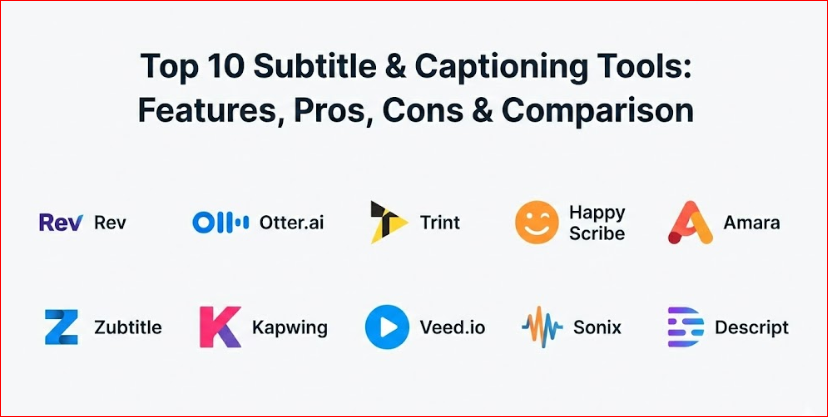
Top 10 Subtitle & Captioning Tools
1. Rev
Rev is one of the most famous names in the industry. It offers a mix of very fast computer-generated captions and human-made captions for when you need 100% perfect accuracy. It is built for businesses that cannot afford to have mistakes in their text.
Key Features:
- Human Captioning: Real people watch your video and type the captions for perfect quality.
- AI Transcription: A very fast computer model that gives you text in just a few minutes.
- Foreign Subtitles: They can translate your video into over 15 different languages.
- Interactive Editor: A simple web tool where you can fix any small typos or timing issues.
- Adobe Premiere Plugin: You can send your videos directly from your editing software to Rev.
- Bulk Orders: Large companies can upload hundreds of videos at once for processing.
- Speaker Identification: The tool can tell the difference between different people talking.
Pros:
- The accuracy of their human services is the best in the business.
- The website is very easy to use, even if you have never handled video before.
Cons:
- Human services are more expensive than computer-based ones.
- If you only use the AI version, it is good, but it still makes mistakes with names and slang.
Security & Compliance: Offers high-level data protection, is GDPR compliant, and uses encrypted file transfers.
Support & Community: Provides an excellent help center, email support, and dedicated managers for enterprise accounts.
2. Otter.ai
Otter.ai is designed primarily for meetings and live conversations. While it can be used for videos, its real strength is “listening” to a live meeting and providing a written transcript in real-time. It is a favorite for office workers and students.
Key Features:
- Live Transcription: It types as people talk during a live meeting or lecture.
- Otter Assistant: A bot that joins your Zoom or Google Meet calls automatically to take notes.
- Keyword Summaries: It automatically highlights the most important words from a conversation.
- Collaborative Notes: Multiple people can highlight or comment on the transcript at the same time.
- Speaker Diarization: It learns the voices of your team members and labels them by name.
- Calendar Integration: It connects to your schedule so it knows which meetings to record.
- Audio Import: You can upload old recordings to get a transcript quickly.
Pros:
- It is the best tool for teams that spend a lot of time in online meetings.
- The mobile app is fantastic for recording and transcribing on the go.
Cons:
- It is not a specialized “video editor,” so making fancy captions for social media is harder.
- The accuracy can drop if people talk over each other during a loud meeting.
Security & Compliance: Includes SOC 2 Type II compliance and robust encryption for all stored recordings.
Support & Community: Offers a clear library of guides and a responsive support team for paid users.
3. Trint
Trint is a professional-level tool often used by journalists and news organizations. It focuses on a “storytelling” workflow, allowing users to find the best parts of an interview and turn them into content quickly.
Key Features:
- Rough Cut Tool: You can highlight text in the transcript and the tool will create a new video clip of just those parts.
- Mobile App: Record and transcribe interviews directly on your phone.
- Multilingual Support: Transcribe in over 30 languages and translate into even more.
- Custom Dictionary: You can teach the tool specific technical words or names so it gets them right.
- Enterprise Collaboration: Large teams can share folders and work on transcripts together.
- Secure Export: Export your text in many formats like SRT, VTT, or plain Word documents.
- Verification Mode: An easy way to play the audio and check the text at the same time.
Pros:
- It saves journalists a massive amount of time when writing stories from interviews.
- The “Rough Cut” feature is a unique way to edit video just by looking at the text.
Cons:
- It is more expensive than some of the more basic “social media” caption tools.
- The interface has many features, which might take a little time to learn perfectly.
Security & Compliance: Uses ISO certified data centers and is fully GDPR compliant.
Support & Community: Provides professional onboarding and high-quality technical support for businesses.
4. Happy Scribe
Happy Scribe is a very flexible tool that offers both AI and human-made transcripts. It is famous for supporting a huge number of languages and dialects, making it a great choice for international teams.
Key Features:
- Dual Service: Choose between fast AI or high-accuracy human transcriptions.
- Interactive Subtitle Editor: A very clean tool to adjust the timing of your captions perfectly.
- Huge Language List: Supports over 60 different languages and many local accents.
- No File Size Limit: You can upload very large and long videos without the system crashing.
- Custom Branding: You can hard-code your captions onto the video with your own fonts and colors.
- API Access: Developers can connect Happy Scribe to their own software systems.
- Workspace Sharing: Invite team members to review and edit captions in a shared space.
Pros:
- The language support is much broader than many other tools on the market.
- It is very fast and reliable for long-form video content like documentaries.
Cons:
- Like other human services, the cost per minute for human proofreading can add up.
- The AI version can struggle with very fast talkers or thick accents.
Security & Compliance: Provides GDPR compliance and secure data storage options.
Support & Community: Offers a very helpful blog and direct customer support through email.
5. Amara
Amara is a unique, community-driven tool. It is often used by non-profits and educational groups. It focuses on open-source values and allows teams of volunteers to work together to subtitle the world’s videos.
Key Features:
- Collaborative Editor: Many people can work on the same video subtitles at once.
- Amara Public: A free space where anyone can help subtitle public videos for the good of the world.
- Workflow Tools: Large organizations can manage “tasks” for different translators.
- Keyboard Shortcuts: Built for speed, allowing experts to subtitle without touching their mouse.
- Multiple Formats: Support for every major subtitle file type used in the industry.
- Privacy Controls: Private workspaces for companies that don’t want their videos to be public.
- On-Demand Services: You can also pay their professional team to do the work for you.
Pros:
- It is the best tool for large-scale, community-based translation projects.
- The editor is very powerful and loved by professional subtitlers.
Cons:
- It is not as “automatic” as some of the AI-heavy tools; it focuses more on manual work.
- The interface can look a bit technical for a brand new user.
Security & Compliance: Offers secure private teams and follows standard data privacy rules.
Support & Community: Has a massive, passionate community and excellent forums for help.
6. Zubtitle
Zubtitle is built specifically for people who make videos for social media. It doesn’t just add captions; it helps you “dress up” your video so it looks great on Instagram, TikTok, or LinkedIn.
Key Features:
- Auto-Captioning: It listens to your video and adds text automatically in seconds.
- Video Resizing: Change your horizontal video into a square or vertical video for different apps.
- Progress Bars: Add a moving line that shows how much of the video is left to watch.
- Headline Addition: Put a big, bold title at the top of your video to catch people’s eyes.
- Stylized Captions: Choose from many trendy fonts and animations for your text.
- Content Repurposing: Turn one long video into several short “social-ready” clips.
- Trim & Crop: Simple tools to cut off the beginning or end of your video.
Pros:
- It is incredibly fast and saves hours of editing for social media managers.
- You don’t need any “editing skills” to make a video look professional.
Cons:
- It is not built for very long videos like hour-long lectures.
- It has fewer “deep” editing features compared to a full video editor.
Security & Compliance: Standard web security and data protection measures.
Support & Community: Offers quick email support and helpful video tutorials for beginners.
7. Kapwing
Kapwing is a full online video editor that happens to have a very powerful auto-subtitle feature. It is a “one-stop-shop” where you can record, edit, add music, and caption your videos all in your web browser.
Key Features:
- AI Subtitler: Generates captions with a single click and matches them to your audio.
- Full Suite Editor: Add images, text, transitions, and sound effects to your video.
- Team Collaboration: Share a link to your project and edit the video live with your friends.
- Safe Zones: Shows you where to put text so it doesn’t get covered by the TikTok or Instagram buttons.
- Magic Tools: AI features that remove background noise or “silences” automatically.
- No Software Install: Everything works inside Chrome or Safari, so you don’t need a powerful computer.
- Direct Export: Save your video and post it directly to social media.
Pros:
- It is very fun to use and feels more like a creative tool than a boring business app.
- Being able to edit the whole video and the captions in one place is very convenient.
Cons:
- The free version adds a watermark to your videos.
- Because it is a large web app, it can sometimes be slow if your internet connection is weak.
Security & Compliance: Provides GDPR compliance and secure cloud storage for your projects.
Support & Community: Has a very active YouTube channel and a large community of creative users.
8. Veed.io
Veed.io is another powerful online video editor that has become famous for its “clean” and “professional” look. It is very popular with startups and small marketing teams who want high-quality videos without hiring a professional.
Key Features:
- One-Click Subtitles: Fast AI that generates captions and lets you style them beautifully.
- Translation: Turn your captions into different languages with one click.
- Stock Media: A library of videos and music you can add to your projects.
- Screen Recording: Record your computer screen and your face at the same time for tutorials.
- Brand Kit: Save your company’s colors and fonts so all your videos look consistent.
- Audio Cleaning: A button that magically removes wind or static noise from your recording.
- Video Templates: Ready-to-use designs for ads, announcements, and tutorials.
Pros:
- The subtitles look very high-end and modern right out of the box.
- The “Audio Clean” feature is incredibly helpful for videos recorded on a phone.
Cons:
- Like Kapwing, the most powerful features are only available in the paid version.
- It is designed for shorter, punchy videos rather than very long documentaries.
Security & Compliance: Offers robust encryption and is compliant with standard data protection laws.
Support & Community: Provides excellent chat support and a very helpful blog full of editing tips.
9. Sonix
Sonix is a very “serious” transcription and subtitling tool. It focuses on being highly accurate and provides deep tools for people who need to manage a lot of audio and video files across a big organization.
Key Features:
- Automated Translation: Translate your transcripts into over 40 different languages.
- In-Browser Text Editor: Edit your audio by editing the text (delete a word, and it deletes that audio part).
- Word-Level Timestamps: Every single word is timed perfectly to the audio.
- Speaker Labeling: Automatically assigns names to different people in the recording.
- Custom Vocabulary: Upload a list of names or jargon so the AI doesn’t make mistakes.
- Multi-Format Export: Export to Word, PDF, SRT, VTT, and even specialized video editing files.
- Media Player: Embed a “searchable” transcript on your website so people can find parts of your video.
Pros:
- It is extremely accurate for a computer-only service.
- The “edit audio by editing text” feature is a massive time-saver for podcasters.
Cons:
- It is a bit more expensive than the very basic social media tools.
- The interface is professional and clean, but it doesn’t have “flashy” video decorations.
Security & Compliance: Top-tier security including SOC 2 compliance and two-factor authentication (2FA).
Support & Community: Offers great documentation and personalized support for larger business accounts.
10. Descript
Descript is a revolutionary tool that changed how people think about video editing. It works like a word processor. If you want to delete a sentence from your video, you just highlight the text and hit “delete.” It is like magic for anyone who finds traditional video editing hard.
Key Features:
- Text-Based Editing: Edit your video just like you are editing a Google Doc.
- Overdub: Create an AI version of your own voice to fix a mistake without re-recording.
- Filler Word Removal: One click to remove all the “umms” and “ahhs” from your video.
- Studio Sound: AI that makes a recording from a cheap phone sound like it was made in a professional studio.
- Green Screen: Remove the background from your video without needing a real green screen.
- Automatic Captions: High-quality captions that stay perfectly in sync with your edits.
- Social Clips: Easily highlight parts of your video and turn them into short clips.
Pros:
- It is the most innovative tool on this list; there is nothing else quite like it.
- It makes editing interviews and podcasts incredibly fast and easy.
Cons:
- It is a heavy piece of software that you have to download and install on your computer.
- Because it is so new and different, it takes a little bit of time to get used to how it works.
Security & Compliance: Provides enterprise-grade security and is very open about how they handle your data.
Support & Community: Has an amazing community of “power users” and a very helpful support team.
Comparison Table
| Tool Name | Best For | Platform(s) Supported | Standout Feature | Rating |
| Rev | Perfect Accuracy | Web, Mobile | Human + AI options | N/A |
| Otter.ai | Meetings & Notes | Web, Mobile | Live meeting assistant | N/A |
| Trint | Journalists | Web, Mobile | Rough cut story tool | N/A |
| Happy Scribe | International Teams | Web | 60+ languages supported | N/A |
| Amara | Non-Profits / Teams | Web | Collaborative community editor | N/A |
| Zubtitle | Social Media | Web | Headlines & progress bars | N/A |
| Kapwing | Online Creators | Web | All-in-one browser editor | N/A |
| Veed.io | Professional Ads | Web | Modern, high-end styling | N/A |
| Sonix | Accurate Transcripts | Web | Text-based audio editing | N/A |
| Descript | Podcasters / Editors | Windows, Mac | Edit video like a document | N/A |
Evaluation & Scoring of Subtitle & Captioning Tools
To help you decide, we have evaluated these tools based on a weighted system that looks at the most important parts of the software.
| Evaluation Category | Weight | How we Score |
| Core Features | 25% | Can it handle captions, translations, and different file types? |
| Ease of Use | 15% | Is the tool friendly for beginners or is it too complex? |
| Integrations | 15% | Does it work with Zoom, Adobe Premiere, and social media? |
| Security & Compliance | 10% | Does it follow GDPR and keep your private videos safe? |
| Performance | 10% | Is the transcription fast and is the website reliable? |
| Support & Community | 10% | Is there a good team to help you if you get stuck? |
| Price / Value | 15% | Do you get a lot of features for the money you spend? |
Which Subtitle & Captioning Tool Is Right for You?
Choosing the right tool is all about knowing what you want to achieve. Not every tool is built for every job. Here is a simple guide to help you make your final choice.
Solo Users and Hobbyists
If you are making videos for fun or just starting out, Kapwing or Veed.io are great because you can do a lot for free (with a watermark). If you are specifically making TikToks or Reels, Zubtitle will give you that “pro” look in minutes.
SMBs and Professional Marketing Teams
If you are a business that needs to look very professional, Rev is the best choice for accuracy. If your team is constantly in meetings and needs a way to remember everything, Otter.ai is a must-have. For teams that make a lot of instructional videos or ads, Descript will save you hours of editing time.
Large Corporations and Enterprises
Big companies need security and scale. Trint, Sonix, and Happy Scribe are excellent here because they offer advanced security features (like SOC 2) and can handle thousands of hours of video across large teams. They also have the best tools for working together in a big office.
Budget-Conscious vs. Premium
- Budget-Friendly: Otter.ai and Happy Scribe offer great value for their AI services.
- Premium (High Accuracy): Rev’s human captioning is the gold standard but costs more.
- Feature Depth vs. Ease of Use: If you want “easy,” go for Zubtitle. If you want “deep,” go for Descript.
Frequently Asked Questions (FAQs)
1. Is AI-generated text accurate enough?
Usually, it is around 85% to 95% accurate. It depends on how clear the person is speaking. For casual videos, it’s great, but for legal or medical videos, you should always have a human check the text.
2. How long does it take to caption a 10-minute video?
With AI tools like Sonix or Veed, it usually takes about 5 minutes. If you are using a human service like Rev, it could take several hours to a full day to get the perfect version back.
3. Do captions help with SEO?
Yes! When you add captions or a transcript to your website, search engines like Google can index that text. This helps your video show up when people search for topics mentioned in your audio.
4. Can these tools translate my video into other languages?
Yes, most of them can. Tools like Happy Scribe and Trint are particularly good at this. They can take your English audio and provide subtitles in Spanish, French, or dozens of other languages.
5. What is an SRT file?
An SRT file is a simple text file that contains your captions and the “time-stamps” for when they should appear. You can upload this file to YouTube or LinkedIn alongside your video.
6. Can I use these tools on my phone?
Yes! Otter.ai, Rev, and Trint have dedicated mobile apps. Other tools like Zubtitle and Veed work inside your mobile web browser, though they are usually easier to use on a computer.
7. Why are captions important for social media?
Research shows that over 80% of social media users watch videos with the sound off. If your video doesn’t have captions, they won’t know what you are saying and will keep scrolling.
8. Can I remove the background noise from my audio?
Yes, tools like Veed.io and Descript have built-in “AI cleaning” buttons. They can remove hum, wind, and background chatter to make your audio sound much clearer.
9. Is my data safe with these tools?
Most reputable companies use encryption to protect your files. If you are working with sensitive information, look for tools that mention “SOC 2” or “GDPR compliance.”
10. What is the biggest mistake people make with captions?
The biggest mistake is not checking the text for mistakes. AI often gets names, technical words, and locations wrong. Always spend two minutes proofreading before you publish your video.
Conclusion
Choosing the right subtitle and captioning tool is one of the smartest things you can do for your video content. It makes your work more professional, helps more people find your videos, and—most importantly—makes your content accessible to everyone.
There is no “one-size-fits-all” answer. If you are a social media star, you will love Zubtitle. If you are a business leader, Otter.ai or Rev will be your best friends. If you want to change how you edit forever, Descript is the way to go.
The best part is that almost all of these tools offer a free trial. Pick two or three that look interesting to you, upload a short video, and see which one feels the most natural to use. Once you find the right fit, you will find that adding subtitles is no longer a chore, but a powerful way to grow your audience.

- Top 10 Email Deliverability Tools: Features, Pros, Cons & Comparison - September 6, 2026
- Top 10 Pharmacovigilance Software: Features, Pros, Cons & Comparison - September 6, 2026
- Top 10 Manufacturing Execution Systems (MES) - July 30, 2026